
If you've ever onboarded with a marketing agency, you've probably hit this moment: they ask for "access to your ad accounts," and suddenly you're not sure whether that means sharing a password, transferring ownership, or something in between. The answer should always be "something in between," but the actual mechanics differ on every platform, and the wrong choice can leave you locked out of your own data when the engagement ends.
This guide walks through the right way to grant access on the three platforms most local and small businesses run ads on: Meta Business Manager (Facebook and Instagram), Google Ads (via a Manager Account, also called an MCC), and TikTok Business Center. If you sell through Shopify, there's a fourth connection to make, and we cover that too: collaborator access to your store, which is how we verify tracking and product feeds on the storefront side. The same principle applies everywhere: your agency should be added as a partner to your account, not the other way around. You keep the keys. They get a guest pass that you can revoke any time.
Why partner access matters (and why password sharing is a trap)
There are three ways an agency can "get access" to your ad accounts. Two of them are bad, and the third is the only one you should ever agree to.
1. Password sharing. You send the agency your login. They use your identity to manage your ads. Every action they take looks like it was taken by you. When they leave, you have to change your password and pray they didn't bookmark anything. There is no audit trail. There is no role-based limit on what they can do. Meta's security systems will eventually flag the foreign login attempts, lock your account, and require a phone-verification dance to recover it. Never do this.
2. Transferring ownership. The agency creates the account in their name and runs your business under their billing entity. This is common with smaller agencies because it's easier for them. But it's catastrophic for you. When the relationship ends, your historical campaign data, pixel signal, custom audiences, and conversion history go with them. You start from zero with a new agency or in-house team. The Federal Trade Commission has actually weighed in on this for franchise marketing because it happens so often.
3. Partner access (the right way). You own your ad account, Business Manager, MCC, and Business Center. The agency owns theirs. You add the agency as a partner, granting them specific, role-based permissions on specific assets. The relationship is transparent: every action is logged under the agency's name, you can see exactly who did what, and revoking access is a single click. Your historical data, pixel signal, and audiences never leave your account.
If we are working with you, we will always ask for partner access to your existing assets: never login credentials, and never ownership of your account. If a previous agency held your account in their name, the first thing we'll help you do is get ownership back.
Before you start: a 5-minute checklist
The single biggest source of onboarding delay isn't the assignment flow itself. It's discovering, halfway through, that you don't actually have admin access to one of the assets you need to assign. Run this check before you sit down to do the connections:
- Meta: Open business.facebook.com and confirm you can see your business under "Business Portfolio." Confirm you're listed as an Admin, not just an Employee.
- Google Ads: Sign in at ads.google.com. In the top right, note your 10-digit Customer ID (the format is
XXX-XXX-XXXX). Confirm under Tools → Access and security that you have Admin access. - TikTok: Open business.tiktok.com and confirm you have a Business Center set up. If your ad account is sitting under a personal account or a freelancer's BC, that needs to move first.
- Billing: Make sure the credit card on file in each ad account is the business's, not a former employee's or freelancer's. This is the single most common source of campaign disruption during agency handoffs.
If anything on that checklist comes up red, fix it first. Recovering admin access from a former employee or freelancer typically takes a few days; chasing it down mid-onboarding stalls campaign launch by a week or more. (Still setting up the Google side from scratch? Do the Google marketing suite setup first — this guide assumes those accounts already exist.)
Meta Business Manager (Facebook & Instagram)
Meta is the most complicated of the three platforms because there are usually four or five different assets involved: the Business Portfolio (formerly Business Manager), the ad account, the Facebook Page, the Instagram account, and the pixel (or Conversions API dataset). Each one is assigned separately. Get them all right and reporting works perfectly; miss one and you'll spend the first month wondering why ROAS looks wrong.
Step 1: Open your Business Portfolio
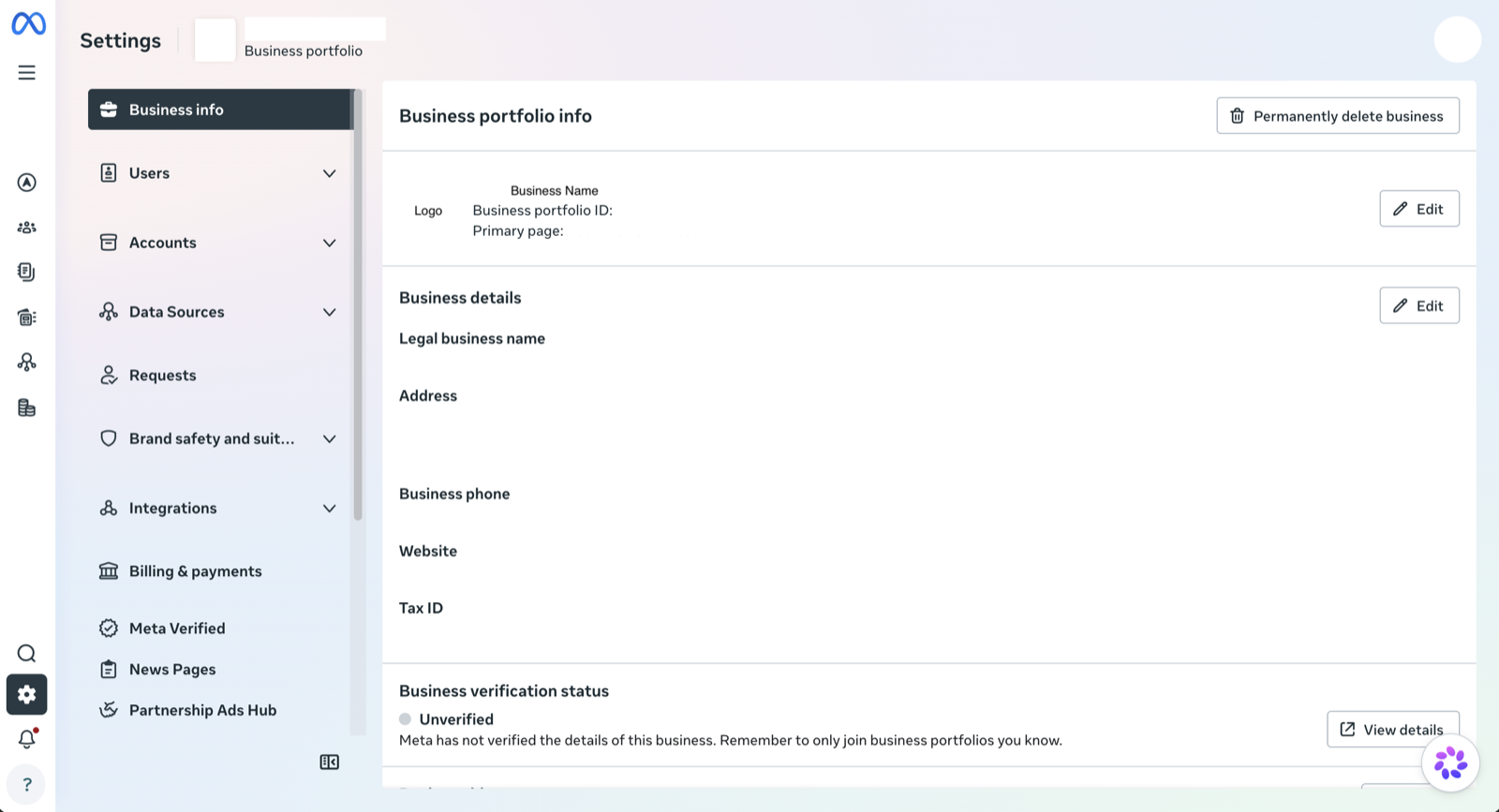
Go to business.facebook.com/settings. The left rail shows every asset and user attached to your business. We'll work down it.
Step 2: Add Pedal as a partner
In the left rail, click Users → Partners, then Add. Choose "Give a partner access to your assets". Meta will ask for Pedal's Business ID. We'll send it to you on a signed cover sheet during onboarding (this is the 16-digit number that uniquely identifies our agency to Meta).
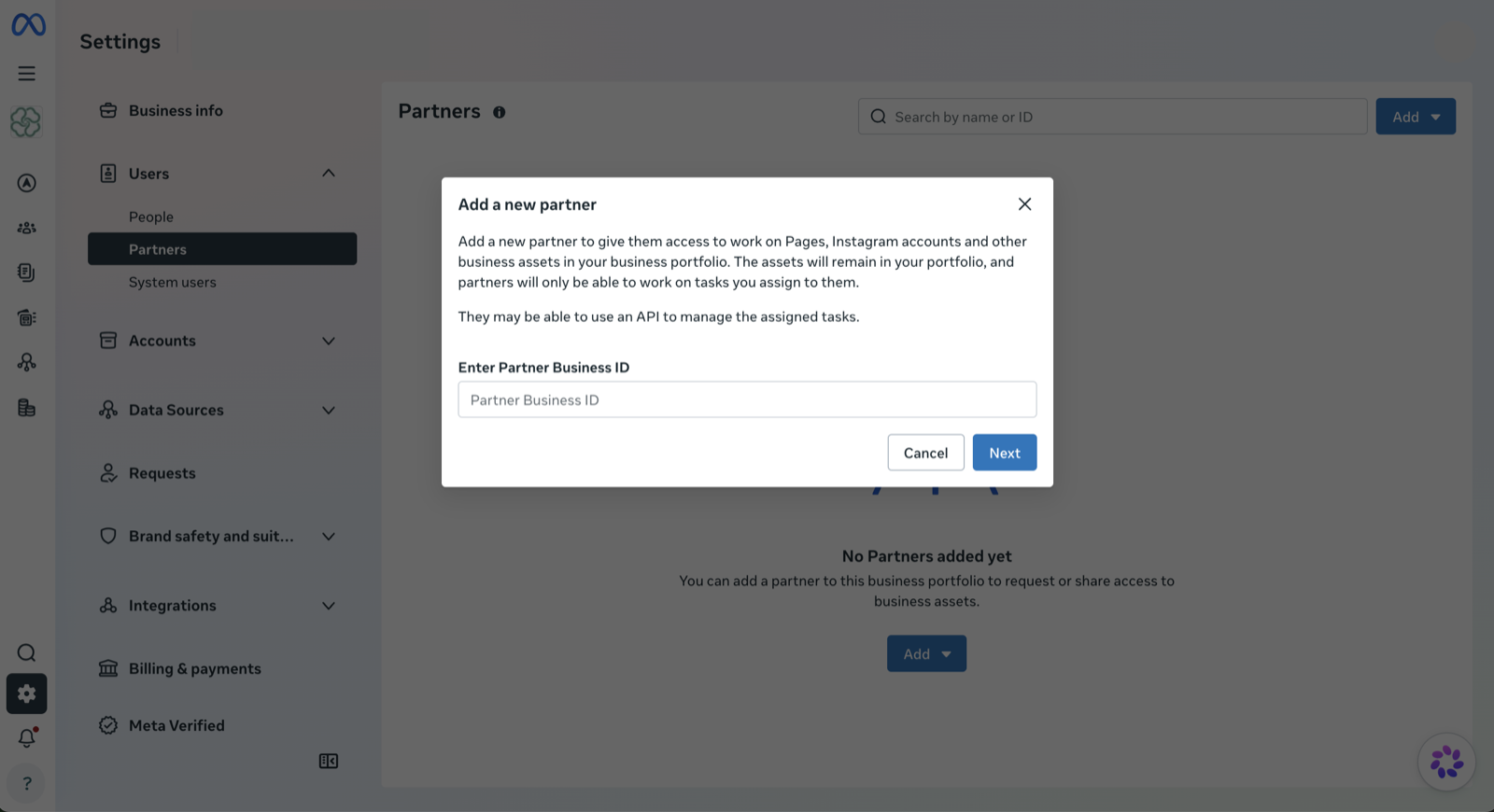
Never paste a Business ID someone DMs you on Facebook or sends in an unsolicited email. We send ours from a @pedal-performance.com address, on a document with our DBA name and signed cover. If something doesn't match, ask before you paste.
Step 3: Assign the right assets at the right permission level
Once Pedal is added as a partner, you'll be prompted to assign specific assets. Here's the matrix we ask for and what each does:
| Asset | Permission level | Why we need it |
|---|---|---|
| Ad Account | Manage | Build, edit, and pause campaigns. Required to run anything. |
| Facebook Page | Create content + Advertise | Boost organic posts and use the Page as the running entity behind ads. |
| Instagram account | Manage account | Use the IG account as the brand identity in placements. |
| Pixel / dataset | Manage | Read conversion signal and add events. Critical for optimization. |
| Catalog (if applicable) | Manage | Product feeds for Advantage+ Shopping or DPA campaigns. |
If you're unsure, default to Manage on the ad account and pixel, and Create content on the Page. The most common mistake is assigning the ad account but forgetting the Page. Campaigns will run, but creative comments won't be moderate-able and we won't be able to boost organic posts.
Step 4: Confirm and notify us
Once you save, Pedal sees the assignments appear in our Business Portfolio within a few minutes. Drop us a note that you've completed the assignment and we'll confirm everything came through correctly. From your side, you can revoke any asset at any time from Users → Partners → Pedal Performance → Remove asset.
If a former agency is still listed as a partner with Manage access on your ad account, remove them first or you'll end up with two agencies fighting over campaign settings. Read-only access for a transition week is fine. Full manage access for two parties is a recipe for overwritten changes.
Google Ads Manager Account (MCC)
Google's flow is simpler in concept but trickier in execution. A Manager Account, often called an MCC (My Client Center, the legacy name everyone still uses), is a parent account that can manage many child Google Ads accounts. Pedal operates one. To add your account to ours, we send you a link request from our MCC, and you approve it inside your own Google Ads account. That's the whole flow.
The trick is that the request goes to whichever email address has Admin rights on your Google Ads account. If that email is dormant or belongs to a former employee, the request will silently land in an inbox no one checks.
Step 1: Send us your Customer ID
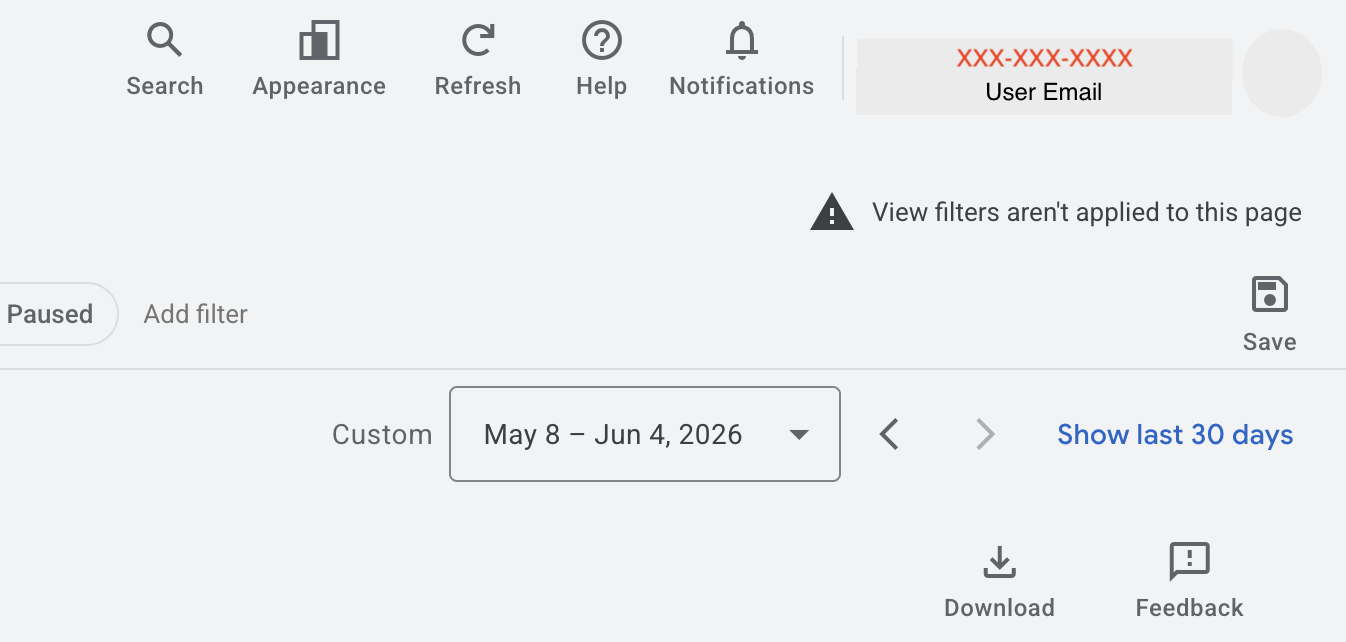
Sign in at ads.google.com. In the top-right of the interface, you'll see a 10-digit number formatted 123-456-7890. That's your Customer ID. Send it to us by email and we'll confirm we received the right one before initiating the request.
Step 2: We send the link request from Pedal's MCC
From our side, we go to Account access → Sub-account settings → Link existing and paste your Customer ID. Google emails the admin on your account immediately and posts a notification in your Google Ads UI.
Step 3: Approve the request in your account
Sign back into Google Ads. You'll see a notification bell with a new alert: "Pedal Performance has requested access to manage this account." Click into it, review the request, and click Accept. Google will ask you to pick a level of access for the manager. There are four levels:
| Access level | Can do | Cannot do |
|---|---|---|
| Read-only | View campaigns and reports | Edit anything, run scripts, pull conversion data via API |
| Standard | Edit campaigns, ads, keywords, bids, budgets | Add or remove users, change billing |
| Admin | Everything in Standard, plus add/remove users and view billing | (All actions available) |
| Email-only | Receive automated reports | Sign in to the account |
For an active engagement, choose Admin. Pedal needs to manage users (to add and remove team members from your account as our team rotates) and view billing (to reconcile reported spend against your invoice each month). If you want to start with Standard and graduate to Admin once you trust us, that's reasonable too. We just won't be able to run the full monthly reconciliation.
Step 4: Confirm linking and check Merchant Center / Analytics
Within minutes of approval the link is live. Two follow-up items most clients forget:
- Google Merchant Center (e-commerce only): you'll also need to grant Pedal access from Settings → People and access in Merchant Center. Shopping campaigns won't run without it.
- Google Analytics 4: link your GA4 property to your Google Ads account so we can build remarketing audiences and read landing-page behavior. We'll send the steps separately if needed.
The manager link is the only thing you need to revoke if the engagement ends. Every other Google asset (Merchant Center, GA4) inherits access through it once you remove the MCC link. Single revocation, full cutoff.
TikTok Business Center
TikTok's model is the most agency-friendly of the three platforms. Their Business Center (BC) explicitly supports a partnership between your BC and an agency's BC. Once partnered, you assign specific assets (ad accounts, TikTok accounts, pixels, and catalogs), and TikTok logs every action under the agency's BC for clean auditability.
The catch: TikTok requires your BC to send the partnership request to ours. You can't accept an inbound request from the agency side. So this step takes a minute of your time but can't be done for you.
Step 1: Confirm your Business Center exists
Go to business.tiktok.com. If you don't yet have a BC, the top-right will offer to create one. Name it after your business, not after a personal account. If your ad account is currently sitting in a freelancer's BC or directly under a personal account, get it moved to your own BC first. TikTok support can help with this, and it takes 1–3 business days.
Step 2: Send Pedal a partnership request
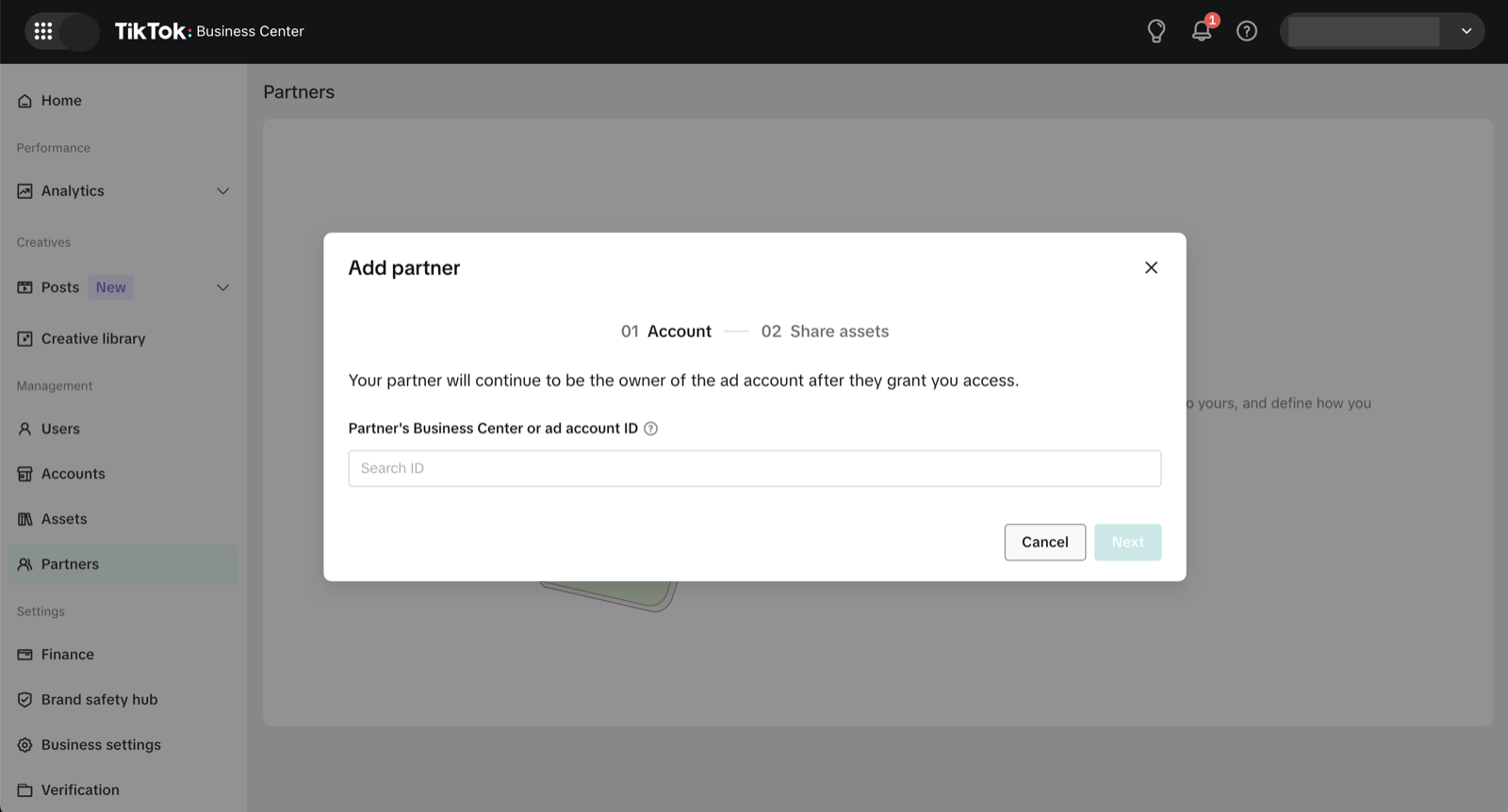
In your Business Center, navigate to Users → Partners, then click Add a partner. TikTok will ask for our Pedal Business Center ID. We'll send the exact string during onboarding. Paste it, click Send invitation, and TikTok queues the request for us to accept.
Step 3: Assign the specific assets we need
Once we accept on our end, you'll be prompted to assign assets to the partnership. As with Meta, each asset is independent. The standard TikTok permissions matrix:
| Asset | Permission level | Why |
|---|---|---|
| Ad Account | Operator | Run campaigns and access reporting. Required. |
| TikTok account (creator profile) | Manage | Use organic posts as Spark Ads and read engagement data. |
| Pixel / Events Manager | Manage | Add events, debug attribution, build retargeting audiences. |
| Catalog (if applicable) | Manage | Product feed for Video Shopping Ads. |
TikTok uses the label Operator for ad accounts where Meta uses Manage; they mean essentially the same thing. One thing teams miss: share the TikTok account itself, not just the ad account: Spark Ads won't run without it.
Step 4: Approve and verify
Once you save, the partnership is live. From Users → Partners → Pedal Performance you can view every action our team takes in your account, and remove the partnership entirely with one click. TikTok's audit log is the most readable of the three platforms. If you want to spot-check what your agency is doing day to day, this is a useful tab to bookmark.
Shopify
If your store runs on Shopify, ad-platform access alone doesn't finish the job. Every dollar we spend on Meta, Google, or TikTok sends traffic to your storefront, and the storefront is where half the plumbing lives: the pixels and tags that report checkouts back to the ad platforms, the customer events that feed conversion optimization, and the product data that powers Google Merchant Center and your Meta catalog. Without store access we can't verify any of it, and "why doesn't my ROAS match my orders" turns into a guessing game.
Shopify has a purpose-built answer for this: the collaborator account. Instead of adding us as a staff member, you approve a collaborator request we submit through your Shopify admin. Collaborators don't count against your plan's staff limits, you choose exactly which parts of the admin we can touch, and you can remove us in one click from the same screen. It's the same partner principle as the other three platforms: you keep the keys, we get a scoped guest pass.
One of the most common things I hear from a business owner is that the ads aren't working, while the ad platform is showing conversions being recorded. It's the classic tug-of-war. 90% of the time, it's because the conversion tracking wasn't set up properly years ago by a former agency or developer, and you end up with two platforms reporting two different conversion counts. To get to a high level of data confidence, store access is non-negotiable.
The phrase I like to use the most is “garbage in, garbage out.” If the data coming out of your store isn't accurate, you're feeding bad data into your ad platforms, and the result is poorer-than-expected performance.
Step 1: Find your collaborator request code
In your Shopify admin, go to Settings → Users (some stores still show this as Users and permissions) and scroll to the Security section. You'll see a 4-digit collaborator request code; click it to copy. If your store is set to accept collaborator requests from anyone, switch it to require the code while you're there. It's the difference between a locked door and an open one.
Step 2: Send us the code
Email us the 4-digit code along with your your-store.myshopify.com address. From our side, we submit a collaborator request from Pedal's Shopify Partner dashboard using that code, and we select the specific permissions we're asking for as part of the request. It lands in your Shopify admin and your inbox within a minute or two.
Treat the code like Pedal's Meta Business ID in reverse: share it only with the agency you're actually onboarding, and only over email. You can generate a new code at any time from the same Security section. A new code invalidates the old one for future requests without affecting collaborators you've already approved.
Step 3: Approve the request and scope the permissions
Back in Settings → Users, you'll see the pending request from Pedal. Before you accept, review the permissions attached to it. Here's what we actually need and why:
| Permission | Level | Why we need it |
|---|---|---|
| Online Store (themes) | Manage | Place and QA tracking scripts in the theme, and check the landing pages your ads point to. |
| Customer events / pixels | Manage | Install and debug the Meta pixel, Google tag, and TikTok pixel through Shopify's customer events. |
| Products | Manage | Keep titles, prices, and availability clean in the feeds behind Google Shopping and Meta catalog ads. |
| Orders | View | Reconcile the conversions the ad platforms report against real orders. Read access is enough. |
Notice what's not on that list: customer data exports, billing, staff management, finances. Shopify lets a collaborator request every permission the store has, and some agencies do exactly that out of laziness. If a request asks for the whole store, push back and ask why. We ask for the four above and add others only with a reason attached.
Step 4: Confirm and notify us
Click Accept request and your store appears in Pedal's Partner dashboard within a few minutes. Drop us a note and we'll confirm we can see the theme, the customer events, and the product catalog from our side. You can review or change our permissions at any time from Settings → Users → Pedal Performance, and removing the collaborator cuts off access instantly, with your store, your orders, and your data exactly where they were.
Verify everything is connected
Before you consider onboarding done, run this last pass. We do this with every Pedal client on day one of the engagement, and it catches about 30% of avoidable issues before campaigns launch:
- Meta: The agency can see all five assets (ad account, Page, Instagram, pixel, catalog) in their Business Portfolio. The agency's name appears under Partners in your Business Portfolio.
- Google Ads: The MCC link shows as Linked in your account's Account access → Managers tab. The agency can pull at least one historical report.
- TikTok: Partnership status is Active. All assigned assets show up in the agency's BC.
- Shopify (if you sell online): Pedal is listed as a collaborator under Settings → Users with the scoped permissions, and your store shows up in the agency's Partner dashboard.
- Billing: The credit card or invoiced billing entity in each ad account is yours, not the agency's.
- Conversion tracking: Pixel/Conversion API events fire on at least one test conversion. This is where 90% of "where is my data" tickets in month one come from.
What Pedal does once we're in
Granting access is step one. The reason we walk new clients through this carefully isn't process for process's sake. It's because the first week of the engagement is when the audit happens, and the audit is what shapes everything that comes after. (Here are the five questions that audit answers.)
Within seven days of getting access, every Pedal client gets:
- A waste audit. We pull the last 90 days of spend and identify the campaigns, ad sets, and audiences that have been losing money. On average we find 18–24% of monthly spend that's been quietly underperforming and is safe to redirect.
- A pixel and conversion-tracking audit. Half of the small-business ad accounts we audit have broken or duplicate conversion events. Fixing this alone usually drops cost-per-lead by 15–25% before we change a single dollar of media.
- A creative-performance breakdown. We rank every creative your account has run by ROAS and isolate the patterns the winners share. This is the input to the next 30 days of creative production.
- A 30-day plan. Specific campaigns to pause, specific tests to launch, specific budget shifts. You approve it, we execute it. No surprises.
This is the entire reason agency access matters. The data we read out of your ad account during that first week is more valuable than any "strategy deck" anyone could put together cold. Partner access is what makes that read possible.
If you're a Pedal-managed client, the audit above runs through Hopkin, our in-house AI marketing copilot. You get read-only Hopkin access to your own account on day one, which means you can ask the same questions of your data that we can. Self-serve clients can use Hopkin directly. Learn more about Hopkin →
Frequently asked questions
Will an agency see my historical campaign data?
Yes, and that's the point. Granting partner-level access gives the agency your full performance history so they can audit what's worked, what's wasted spend, and where the opportunities are. None of that data leaves your account. The agency is reading it through the platform, not exporting it.
Do I have to give my agency the password to my account?
No, and you shouldn't. Meta, Google, and TikTok all support partner-style access where an agency's own business account is granted permissions on your assets. Your login stays yours. If an agency asks for your password, treat that as a red flag. It means they don't have their own manager set up.
What happens to my access if I leave the agency?
Nothing. Because the agency was added as a partner to your account (not the other way around), you can revoke access in a single click and the account stays in your name with all history intact. This is the single most important reason to use partner access instead of giving up the account.
Can the agency spend my money without my approval?
The agency manages campaigns inside your account, but the billing card and credit on file stay yours. You set the daily and monthly spend caps. At Pedal we work to a budget you approve before campaigns go live, and we send weekly reports against that budget.
I already gave a previous agency access. Do I need to remove them first?
We recommend it, yes. Either revoke their access entirely or downgrade them to read-only. Two agencies actively editing the same account leads to overwritten changes and split attribution. We're happy to coordinate a clean handoff if a previous agency is still involved.
What if my account is owned by a former employee or a freelancer?
Get the keys back before you do anything else. On Meta this means transferring ownership of the Business Portfolio. On Google Ads it means adding yourself as an admin and removing the prior owner. On TikTok it means becoming the BC admin. This is the most common access-related delay for new clients, so start it the day you decide to bring in an agency.
How long should this take?
If you already have admin access to all the assets, the full setup for Meta + Google + TikTok, plus the Shopify collaborator request if you sell online, takes most clients under 30 minutes. If you're chasing down a former owner or recovering an account, plan for a few days.
Does Pedal need my Facebook Page, Instagram account, and pixels, or just the ad account?
All of the above. The ad account is where campaigns run, but the Page and Instagram account are required to attribute ad performance to your brand, and the pixel/Conversions API is what makes conversion tracking work. We will tell you exactly which assets to assign during onboarding.